Setting up Ruskin to Auto-download
Follow the steps below if you need to enable automatic downloads manually.
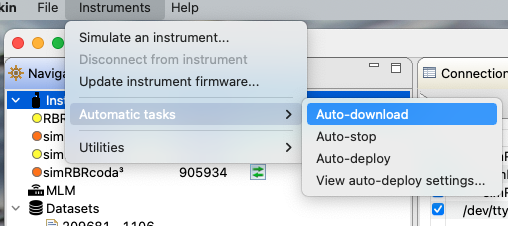
On Ruskin, open the Instruments menu on the top toolbar and go to Automatic tasks > Auto-download.
Alternatively, right-click Instruments in the Navigator window.
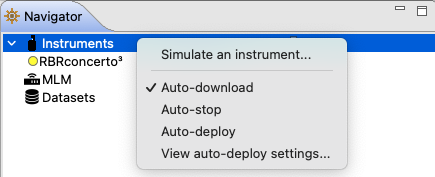
With the Auto-download feature enabled, Ruskin will automatically start a download process as soon as it detects an instrument. The downloaded dataset will be named following the standard naming convention, and saved in the default directory. See Ruskin User Guide: Standard Instruments3, sections 13 and 12.2 (available on the RBR website or on Ruskin, Help > Documentation).