Connecting to Ruskin
After the RBRglissando power and communication cables are connected to the control cabinet, turn the power switch on. Now you can connect the winch to Ruskin.
Steps
-
Connect the Ethernet cable from the control cabinet to your laptop.
-
Configure a dedicated Ethernet port on your machine for the RBRglissando with the IP address: 192.168.100.100.
To set a static IP address on your machine, refer to applicable documentation for your particular operating system (Windows or Mac).
-
On the handheld remote control, turn the LOCAL / REMOTE switch to the REMOTE position. When it is, the white LED will be off.

If Ruskin is already installed and running on your laptop, proceed to Connecting to the RBRglissando. If not, go to Using Ruskin for guidance.
-
In the top toolbar, go to Instruments > Utilities > Connect to networked device… .
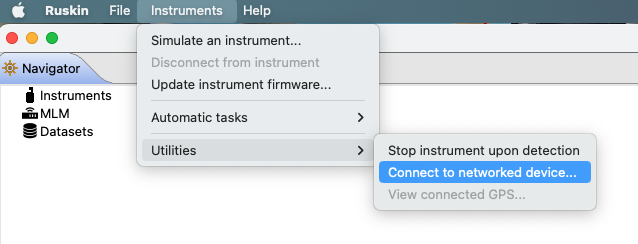
-
Select Winch from the dropdown menu. Enter 192.168.100.255 in the IP address field and 2000 for the IP port, then click Connect.
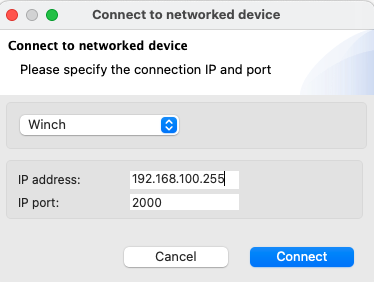
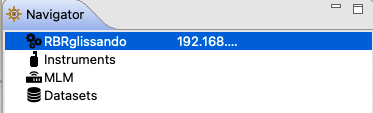
Your RBRglissando information will appear in the Navigator window.
The Properties window becoming Control, with three tabs: Manual, Profiling, and Configuration.
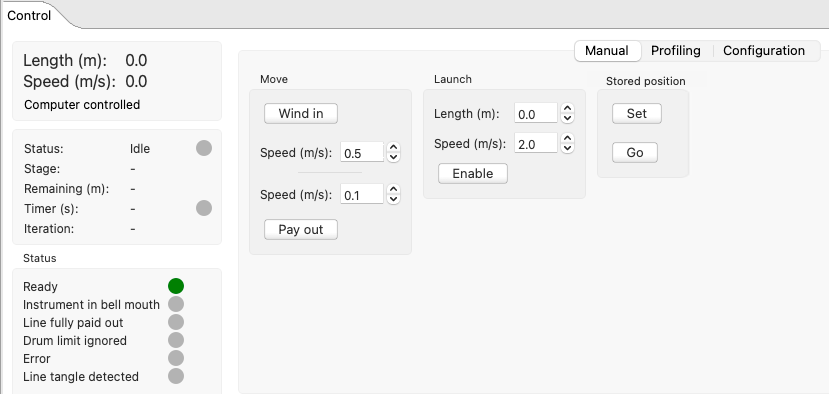
You will use the three tabs to configure and operate your RBRglissando. The three subsections on the left remain the same for all tabs and display various statuses of the winch.
-
Verify your connection.
If the RBRglissando is connected to Ruskin, a message "Computer controlled" will be displayed in the top left subsection.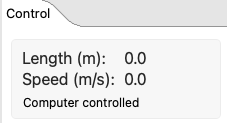
If the message reads, "Handheld remote controlled", the LOCAL / REMOTE switch on the handheld remote must be in the LOCAL position. Turn the switch to REMOTE, and the RBRglissando will connect to Ruskin immediately.