Retrieving data
Using the external MCBH USB port
|
Tools needed
|
Retrieving data via the external USB port.
-
Power on the data controller.
-
Close Ruskin.
Always close Ruskin before connecting the controller to your computer!
-
Connect the provided USB patch cable to the controller and computer.
-
Open the serial terminal as described in Using the USB.
-
Disable the controller using the disable command.
-
Check that all the instruments are disabled using the status command.
-
Use the mount-storage command to expose the data to the host computer.
RBRcervello> mount-storage
Checking deployment status...
Stopping services...
Mounting data partition as read-only
For the drives to be detected in MacOS, you may need to disconnect and reconnect the USB cable to/from the computer.
|
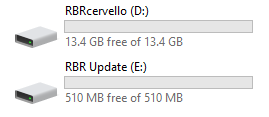
Fig. 22. Drives after using mount-storage
|
Using the internal USB-A port
|
Tools needed
|
The RBRcervello has a USB interface for retrieving data from the unit and for installing firmware and configuration updates. It is compatible with FAT32-formatted or exFAT-formatted USB flash drives. Bus-powered hard drives are not recommended as the RBRcervello may not provide sufficient power.
To retrieve data from the RBRcervello, connect the USB storage device to its USB-A port while it is powered on and awake. All data will be copied from the data controller to the storage device. During data transfer, the red light on the RBRcervello will flash steadily. Once all data are transferred, the red light will cease flashing and the green light will turn on. At that point, the storage device may be disconnected safely. The green light will turn off after disconnecting the device.