Using the diagnostic port
RBRcervello Antarctica and dual-modem
The RBRcervello diagnostic port consists of a six-pin bulkhead connector with power and RS-232 connections. It is meant to be used in conjunction with an RBR patch cable with RS-232 electrical connections, like the one provided in the RBRcervello Antarctica shipping crate.
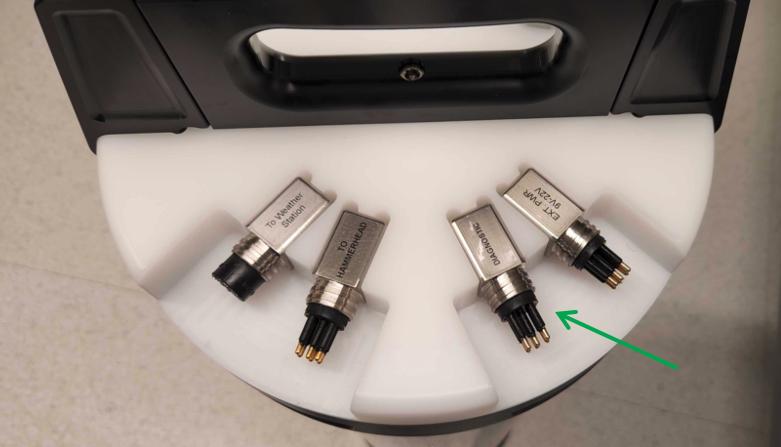
|
Tools needed
|
External MCBH-6-MP diagnostic connector pinout
|
Pin No. |
RS-232 |
1 |
Ground |
|
2 |
Power +9 to +22 V |
|
3 |
Data output from the instrument (Tx) |
|
4 |
Data input into the instrument (Rx) |
|
5 |
N/C |
|
6 |
N/C |
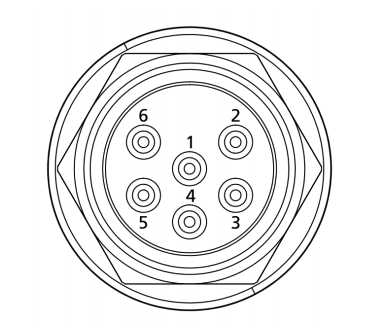
Serial terminal
|
RBRcervello serial settings
|
Use a terminal emulator to communicate with the RBRcervello through its diagnostic/debug port.
Windows On a Windows-based workstation, use any terminal emulator console that supports a serial port, such as Tera Term. Tera Term Tera Term is an open-source terminal emulator that lets you connect to hosts via serial port or the network. The default settings should work with the RBRcervello interface. In the unlikely event when they do not, load the configuration file provided below using the Setup→Restore setup menu. |
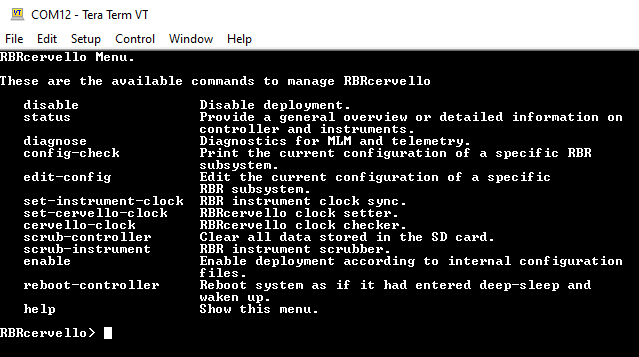
Fig. 1. Tera Term
|
Alternatively, configure the settings manually as follows:
|
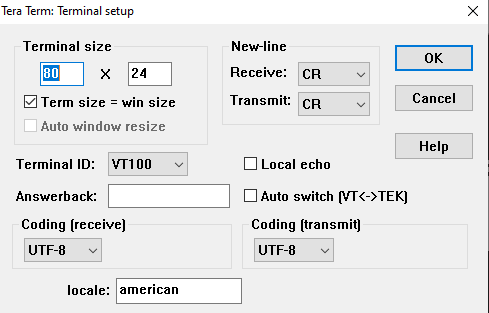
|
|
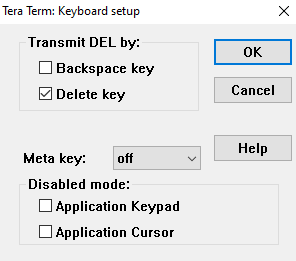
|
|
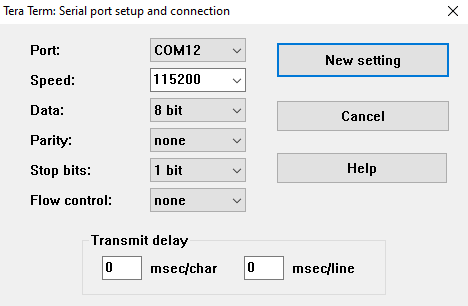
|
|
Highlighting text on the terminal automatically copies it to the clipboard. Right-clicking on the terminal will paste the saved text on it. |
Linux
On a Linux-based workstation, use any terminal emulator console that supports a serial port, such as Minicom.
Minicom
Minicom is a serial communication program that connects to devices through a GNU/Linux serial ports. Use the -s command to set up the terminal with the right port and settings, or execute it with explicit settings at runtime with the correct device:
minicom -b 115200 -D /dev/ttyUSB0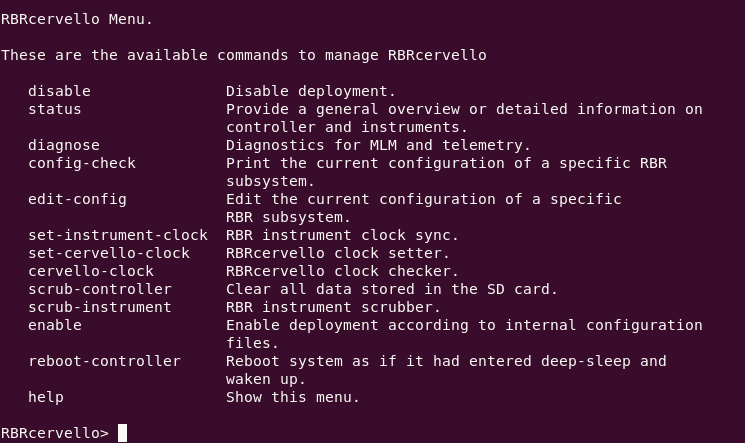
Fig. 2. Minicom
|
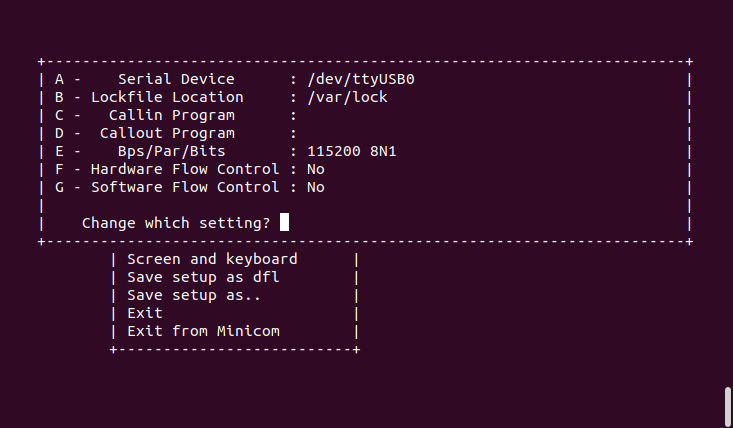
Fig. 3. Minicom serial settings
|
|
To copy and paste text from and to a Linux terminal, use Ctrl+Shift+C and Ctrl+Shift+V. |
Diagnostic menu overview Access the RBRcervello menu via the diagnostic port using an RS-232 interface (115200 8N1). It is a fully-featured Bash terminal (Restricted Bash) with tab completion. To see the list of available commands, execute the |
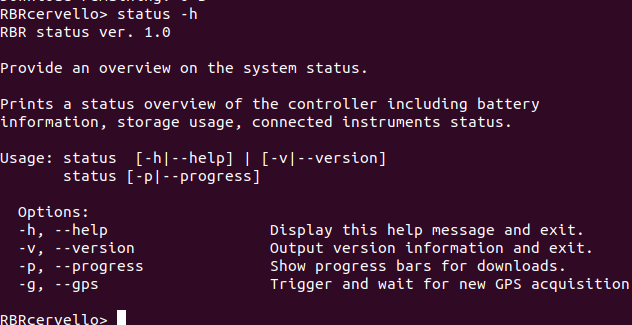
Fig. 4.
status help |
RBRcervello Menu.

These are the available commands to manage RBRcervello

   disable               Disable deployment.
   status                Provide a general overview or detailed information on
                         controller and instruments.
   diagnose              Diagnostics for MLM and telemetry.
   transparent-link      Establish a transparent link to an instrument
                         serial port.
   config-check          Print the current configuration of a specific RBR
                         subsystem.
   edit-config           Edit the current configuration of a specific
                         RBR subsystem.
   set-instrument-clock  RBR instrument clock sync.
   set-cervello-clock    RBRcervello clock setter.
   cervello-clock        RBRcervello clock checker.
   scrub-controller      Clear all data stored in the SD card.
   scrub-instrument      RBR instrument scrubber.
   enable                Enable deployment according to internal configuration
                         files.
   reboot-controller     Reboot system as if it had entered deep-sleep and
                         waken up.
   help                  Show this menu.
See the Diagnostic menu section for more information.