Quick start guide

RBR standard Instruments can measure conductivity, temperature, pressure, and up to 10 other parameters - at rates up to 32Hz. They have a rugged design, long deployment life, and are intuitive to use.
Included with your instrument
-
USB-C desktop cable with adaptor
-
O-rings, silicone compound, O-ring removal tool, and reusable desiccant
-
USB stick containing Ruskin software and documentation
-
Calibration certificates*
*Calibration certificates are available in Ruskin. To download, connect your instrument, go to Information, and select the Download button.
Wi-Fi
Instruments equipped with a Wi-Fi module have the Wi-Fi READY icon on the end-cap. This module needs to be enabled at the time of purchase.
Ruskin software
Find Ruskin software for Mac and PC on the USB stick included with your instrument, or visit rbr-global.com/products/software. Download Ruskin Mobile from the Apple App Store or Google Play.
Deploy
| RBR ships all instruments preconfigured to sample at the fastest available rate, with twist activation enabled, and the battery end-cap set to PAUSE. |
-
Turn the battery end-cap to the RUN position. The instrument will vibrate with one long pulse to indicate it has started sampling.
-
Deploy the instrument.
If the unit has a conductivity sensor, deploy your instrument with the same cage or guard as used during calibration and at least 15cm away from other objects. 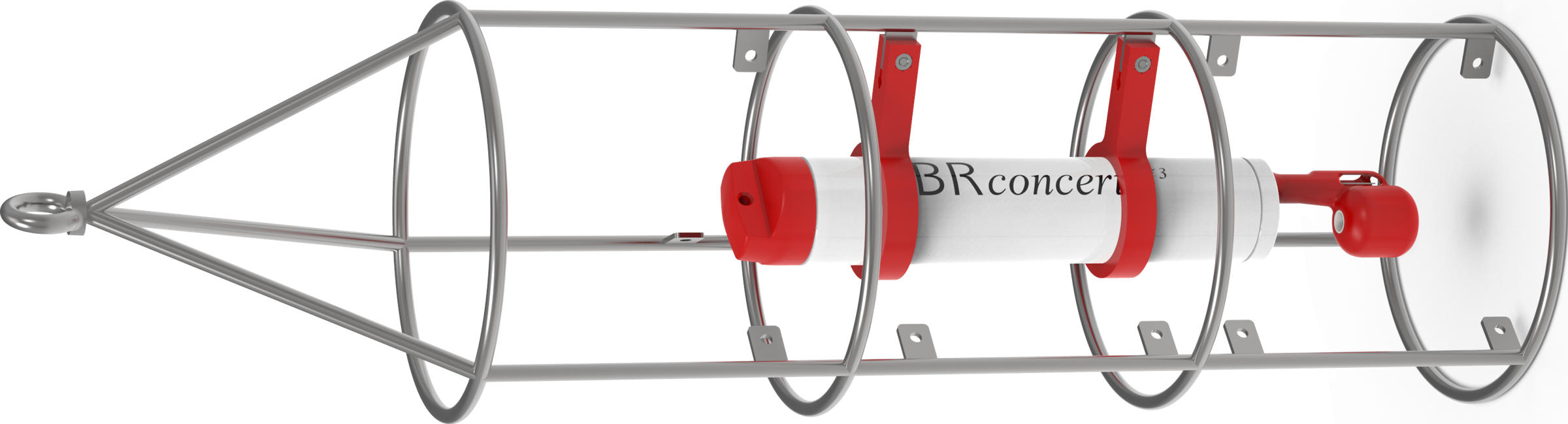
-
To pause logging, turn the battery end-cap to the PAUSE position. The instrument will vibrate with three short pulses to indicate it has stopped sampling.
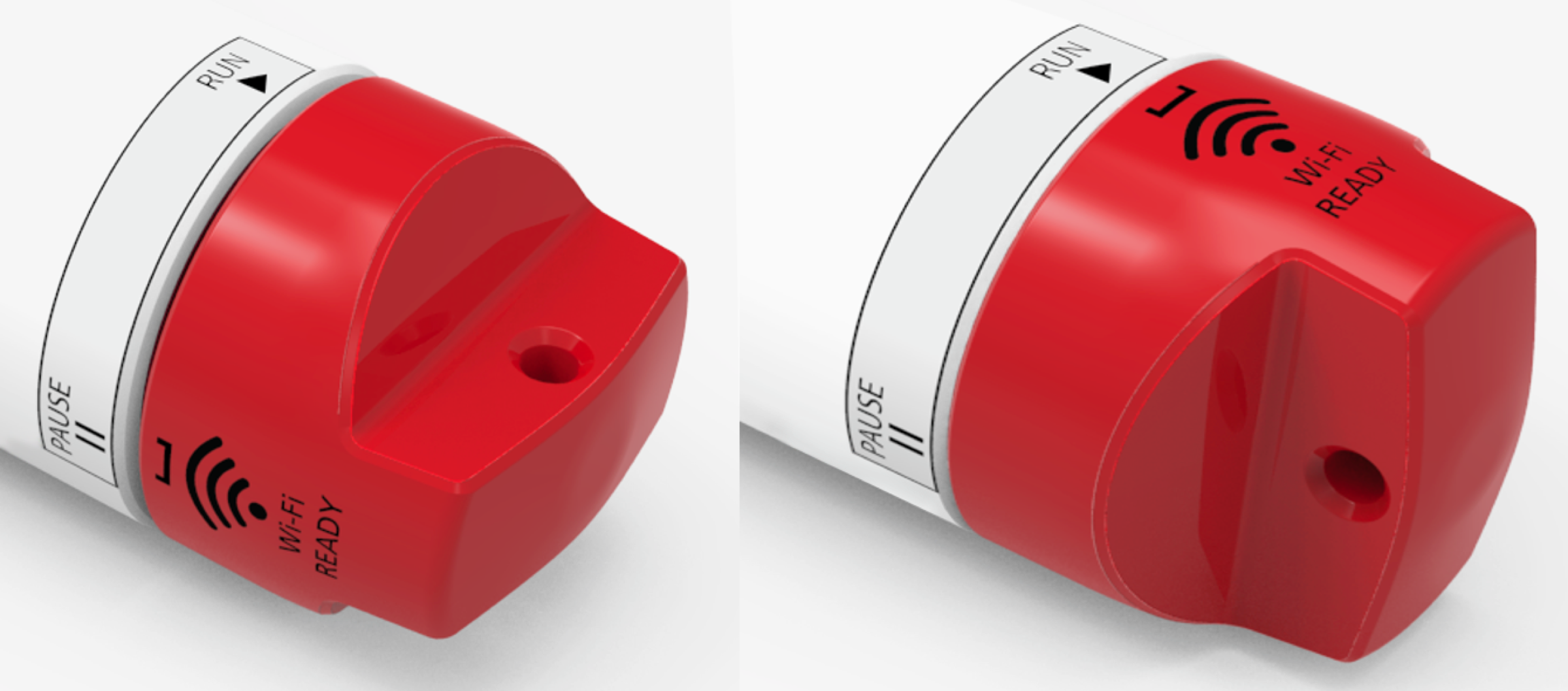
RUN PAUSE
Download
Via USB (Ruskin Desktop)
-
Fully unscrew and remove the battery end-cap.
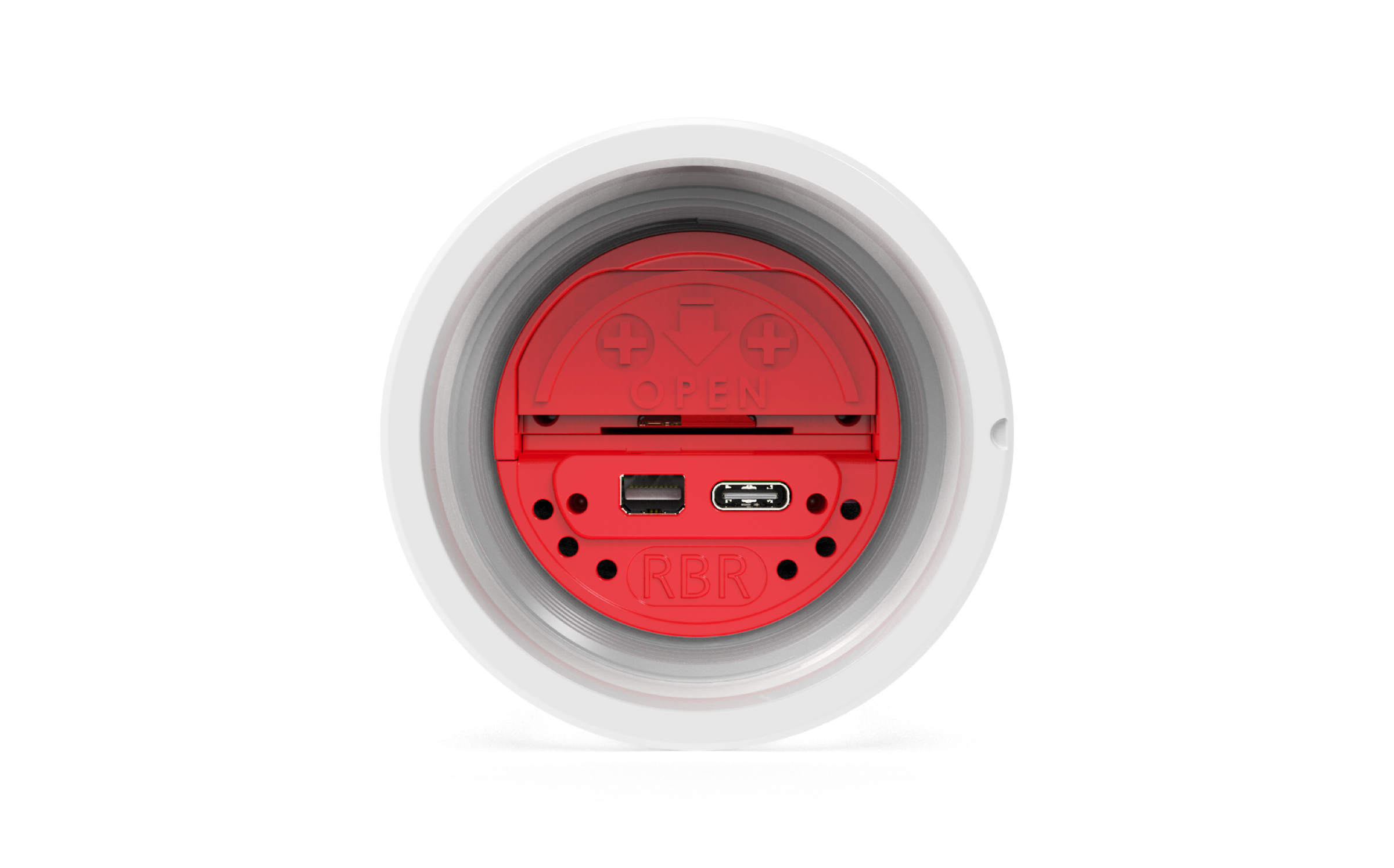
Locate the USB-C port inside the instrument
-
Connect the USB-C desktop cable to the USB-C port. The instrument will appear on Ruskin.
-
Click Download... and choose a location to store the dataset.
Via Wi-Fi (Ruskin Mobile or Desktop)
| Instruments equipped with a Wi-Fi module have the Wi-Fi READY icon on the end-cap. |
-
Twist the battery end-cap in either direction (RUN or PAUSE).
Twisting the end-cap to RUN or PAUSE will activate the Wi-Fi. However, twisting to the PAUSE position will also pause the instrument -
Connect your computer or mobile device to the instrument Wi-Fi network via your device settings.
-
If using a computer, click Download... and choose a location to store the dataset. On a mobile device, the data from connected instruments are downloaded automatically and stored locally until uploaded to Dropbox.
| The Wi-Fi will time-out after 60 seconds of inactivity. Twist the end-cap in either direction to re-activate the Wi-Fi. |
Deployment checklist
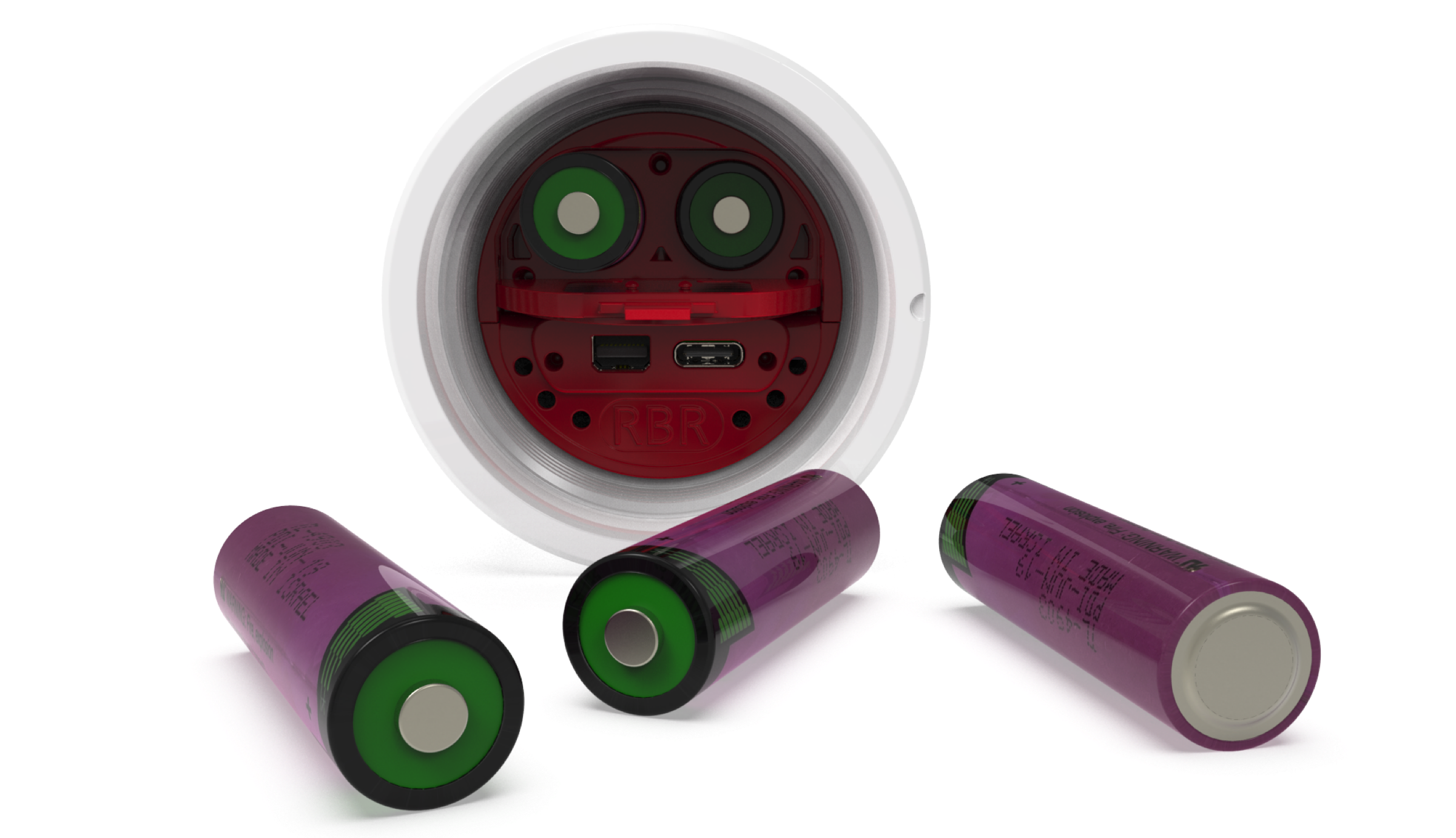
RBR ships all instruments with new, highest capacity batteries and fresh desiccant capsules included, and the O-ring installed, so that the instrument is ready for its first deployment.
For any subsequent deployment:
-
Install new batteries.
-
Install fresh desiccant (orange).
-
Inspect, clean, replace, and lubricate the O-ring.
| Always remove the batteries from the instrument during long-term storage! Doing so will prevent internal damage due to battery leakage and/or corrosion. |
Support
To access support within the Ruskin app, navigate to Help > Comment on Ruskin....
For technical support, please reach out to [email protected], call +1 613 599 8900 (UTC-5), or visit rbr-global.com/support/service.