Quick start guide

The RBRquartz³ APT (Accelerometer, Pressure, Temperature) combines a triaxial quartz accelerometer with the Paroscientific Digiquartz® pressure sensor, building on the capabilities of the RBR bottom pressure recorders. The RBRquartz³ APT supports both autonomous installations and realtime data streaming to cabled observatories. The external ports may be configured as either USB, RS-232/RS-485, or Ethernet (selected at the time of order).
Included with your instrument
-
MINK cable/adaptor1
-
USB-C desktop cable with adaptor
-
O-rings, silicone compound, O-ring removal tool, and reusable desiccant
-
Refill adaptor, syringe with stopper, dispensing needle, syringe kickstand, and buffer fluid
-
External pressure adaptor
-
Cap screws and hex keys
-
USB stick containing Ruskin software and documentation
-
Calibration certificates2
1Cables and/or adaptors must be compatible with your instrument configuration. They are included with the instrument if requested at the time of order.
2Calibration certificates are available in Ruskin. To download, connect your instrument, go to Information, and select the Download button.
Ruskin software
Find Ruskin software for Mac and PC on the USB stick included with your instrument, or visit rbr-global.com/products/software.
Deploying the RBRquartz³ APT, Ethernet version
-
Connect your terminal to the MINK port located outside the instrument body using a compatible MINK cable. The instrument will appear in your network.
-
The instrument will attempt to acquire network configuration information via DHCP.
IP connections to the instrument are made on two different ports. The first one is the read-only data port (23) where you can listen for the measured data that is being streamed out. The other is the control port (2323) which permits some settings to be modified. -
Upon connection to the control port (2323), there will be no immediate response or banner. You can enter commands by typing them in.
When entering a command, terminate with line-feed. Any carriage returns will be ignored. -
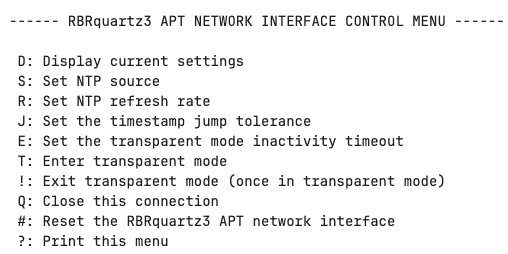
Enter the question mark (“?”) command to display the network controller control menu.
-
Enter “T” to enable the transparent mode.
-
Enter “clock” to reset the instrument clock if necessary.
-
Enter deployment parameters.

-
Enter the following command to erase the memory and start the deployment.

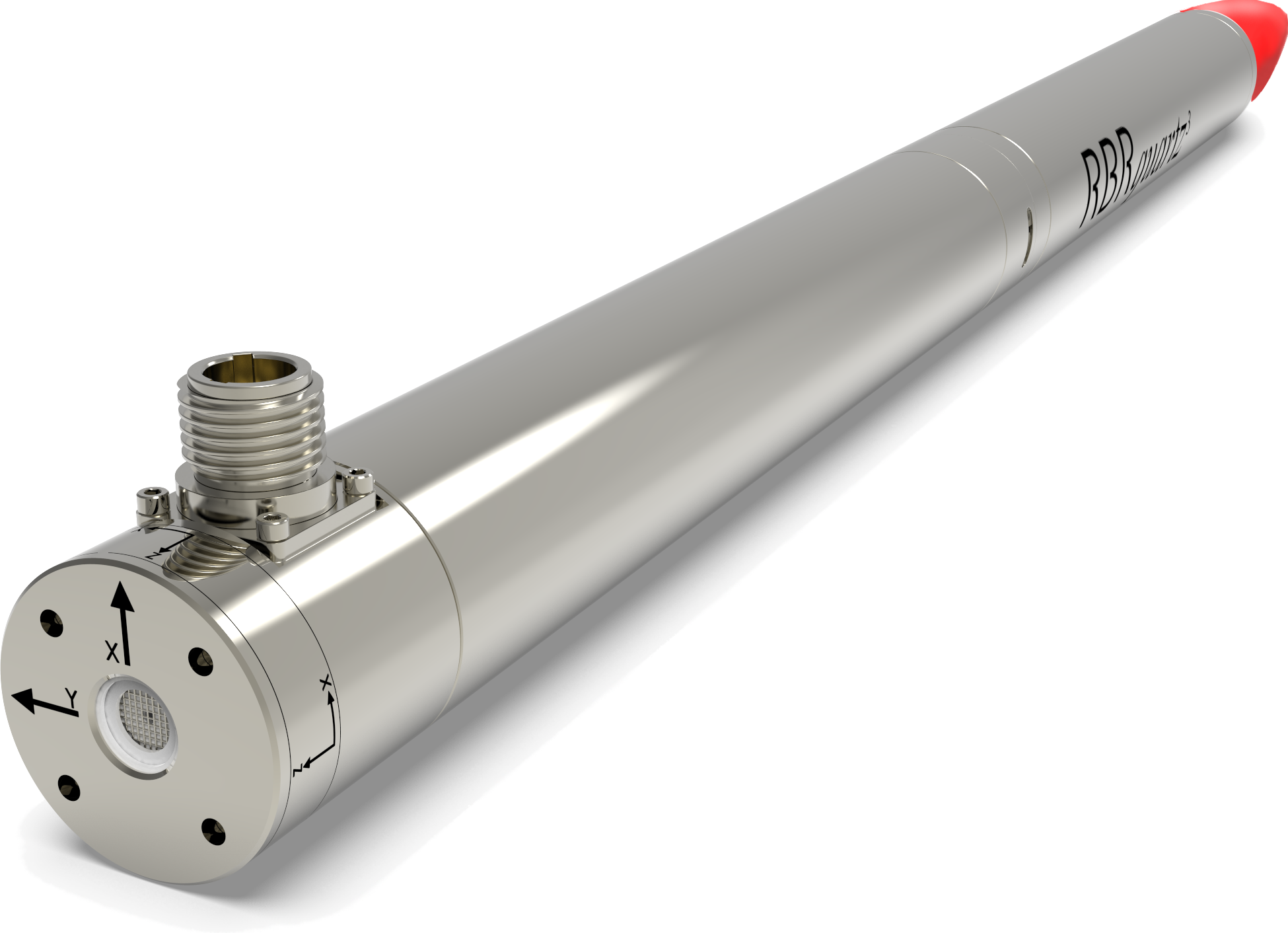
MINK connector
Deploying the RBRquartz³ APT, RS-232/RS-485 versions
-
Connect your computer to the MINK port located outside the instrument body using a compatible MINK cable. The instrument will appear on Ruskin.
-
Select the required Sampling mode and speed.
-
Select UTC or Local to synchronise the instrument clock to the computer.
-
Choose whether to start Now or enter your desired Start date/time.
-
Review the estimated End date to ensure it fulfils the deployment requirements. Longer deployments can be achieved with better battery chemistry or lower sampling speeds.
-
Click Enable to start the deployment.
Deployment checklist
RBR ships instruments with new lithium thionyl chloride batteries and fresh desiccant capsules included, and the O-rings installed, so that the instrument is ready for its first deployment.
For any subsequent deployment, refer to the instructions in the RBRquartz³ APT Instrument Guide.
| Always remove the batteries from the instrument during long-term storage! Doing so will prevent internal damage due to battery leakage and/or corrosion. |
Support
To access support within the Ruskin app, navigate to Help > Comment on Ruskin....
For technical support, please reach out to [email protected], call +1 613 599 8900 (UTC-5), or visit rbr-global.com/support/service.