Quick start guide
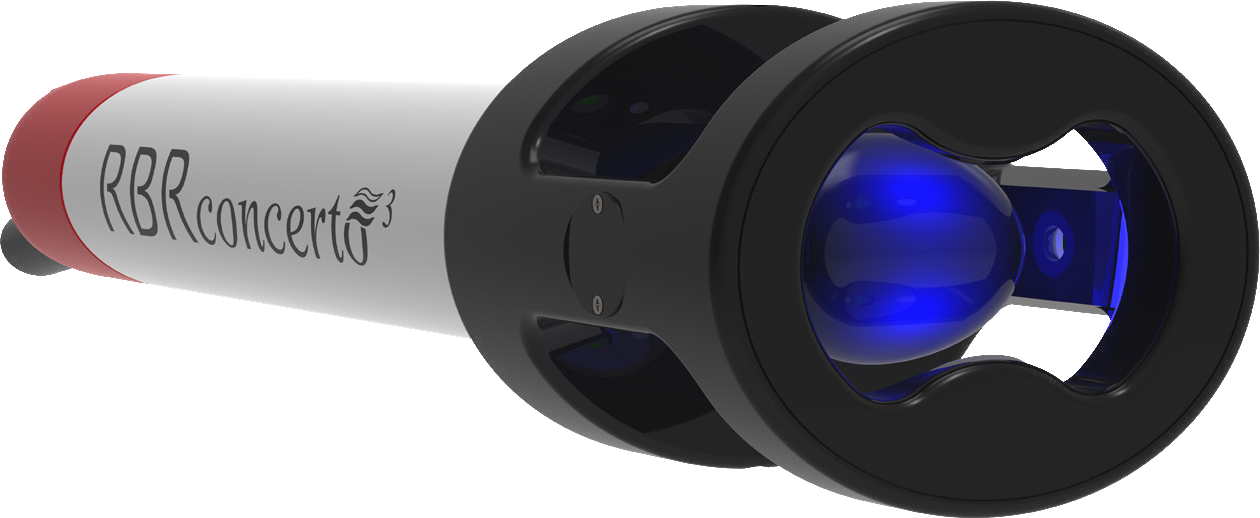
The RBRduo³ C.T | uv and RBRconcerto³ C.T.D | uv offer the same features as our trusted conductivity, temperature, and depth instruments, plus active antifouling. Four UV LEDs illuminate critical sensor surfaces and control biological growth on the conductivity cell, thus maintaining high accuracy measurements during extended deployments in the photic zone.
Warnings

-
Ultraviolet radiation may pose risk for the eyes
-
Wear UV-blocking eyewear of the highest available rating
-
Never look at the LEDs
Included with your instrument
-
USB-C desktop cable with adaptor
-
O-rings, silicone compound, O-ring removal tool, and reusable desiccant
-
USB stick containing Ruskin software and documentation
-
Calibration certificates*
*Calibration certificates are available in Ruskin. To download, connect your instrument, go to Information, and select the Download button.
Wi-Fi
Instruments equipped with a Wi-Fi module have the Wi-Fi READY icon on the end-cap. This module needs to be enabled at the time of purchase.
Ruskin software
Find Ruskin software for Mac and PC on the USB stick included with your instrument, or visit rbr-global.com/products/software. Download Ruskin Mobile from the Apple App Store or Google Play.
Safety precautions
The instrument begins to emit UV radiation as soon as a deployment starts, whether it is by twist activation or when the start time is set to Now.
Ultraviolet radiation is invisible so it may not be obvious when the instrument is active. However, Ruskin will display a warning and the red dots on the UV power icon will turn green.
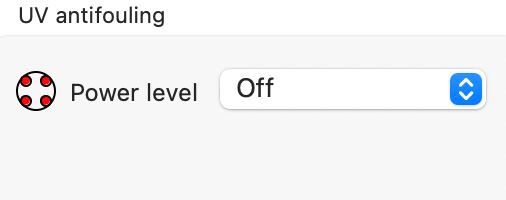
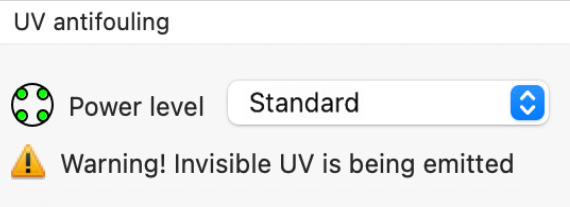
| RBR ships | uv instruments with the UV schedule disabled, so it is safe to unpack them. However, going forwards, RBR recommends following protective measures at all times. |
-
Use protective eyewear when handling CT | uv and CTD | uv instruments. RBR recommends UV-blocking safety glasses of the highest available rating.
-
Never look at the LEDs as their optical power (ultraviolet and visible) can be hazardous to eyes.
-
Whenever handling an active instrument, hold it with the guard facing down to avoid shining the light into the eyes.
Deploy
| RBR ships all instruments preconfigured to sample at the fastest available rate, with twist activation enabled, and the battery end-cap set to PAUSE. |
-
Turn the battery end-cap to the RUN position. The instrument will vibrate with one long pulse to indicate it has started sampling.
-
Deploy the instrument.
-
To pause logging, turn the battery end-cap to the PAUSE position. The instrument will vibrate with three short pulses to indicate it has stopped sampling.
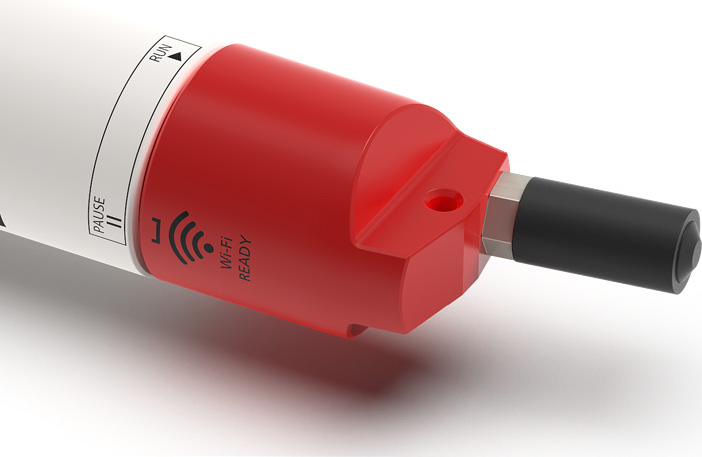
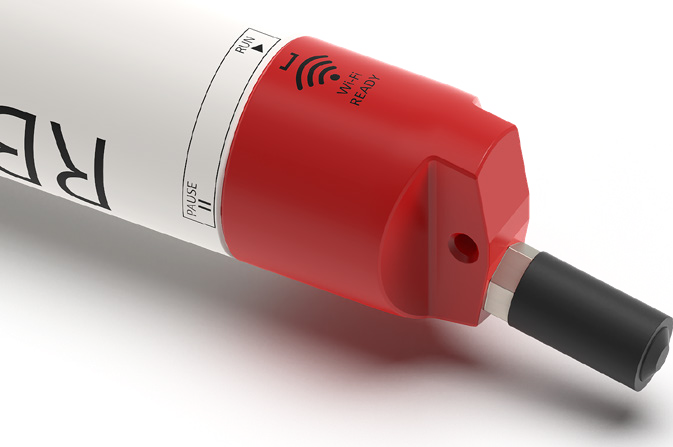
RUN PAUSE
Download
Via USB (Ruskin Desktop)
-
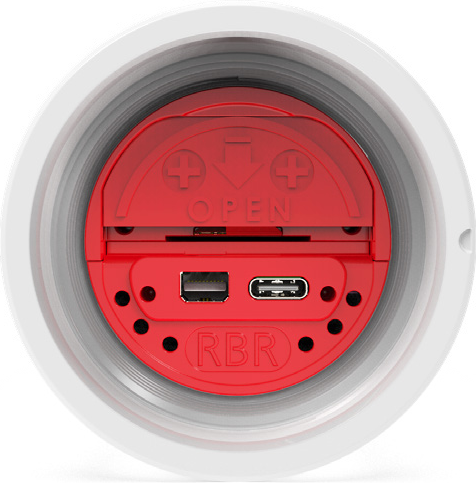
Fully unscrew and remove the battery end-cap.
-
Locate the USB-C port inside the instrument
-
Connect the USB-C desktop cable to the USB-C port. The instrument will appear on Ruskin.
-
Click Download... and choose a location to store the dataset. USB-C port
Via Wi-Fi (Ruskin Mobile or Desktop)
| Instruments equipped with a Wi-Fi module have the Wi-Fi READY icon on the end-cap. |
-
Twist the battery end-cap in either direction (RUN or PAUSE).
| Twisting the end-cap to RUN or PAUSE will activate the Wi-Fi. However, twisting to the PAUSE position will also pause the instrument. |
-
Connect your computer or mobile device to the instrument Wi-Fi network via your device settings.
-
If using a computer, click Download... and choose a location to store the dataset. On a mobile device, the data from connected instruments are downloaded automatically and stored locally until uploaded to Dropbox.
| The WI-Fi will time-out after 60 seconds of inactivity. Twist the end-cap in either direction to re-activate the Wi-Fi. |
Deployment checklist
RBR ships all instruments with new, highest capacity batteries and fresh desiccant capsules included, and the O-ring installed, so that the instrument is ready for its first deployment.
For any subsequent deployment:
-
Install new batteries.
-
Install fresh desiccant (orange).
-
Inspect, clean, replace, and lubricate the O-ring.
| Always remove the batteries from the instrument during long-term storage! Doing so will prevent internal damage due to battery leakage and/or corrosion. |
UV antifouling settings
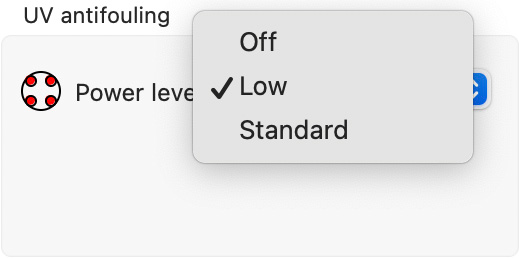
RBR ships | uv instruments with the standard UV power level selected by default and the sampling speed set to 60s continuous.
-
If you need the UV power level set to Low or Off for your deployment, open Ruskin and go to UV antifouling > Power level.
-
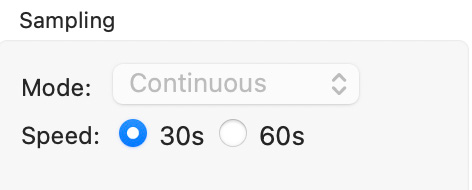
At the low power level, you can go to Sampling and select either 30s or 60s continuous sampling. Note: This selection is not available at the standard UV power level.
The UV LEDs will activate immediately after you enable the deployment.
Support
To access support within the Ruskin app, navigate to Help > Comment on Ruskin....
For technical support, please reach out to [email protected], call +1 613 599 8900 (UTC-5), or visit rbr-global.com/support/service.